How to create a hand drawn look
The results
may vary in the outcome of this tutorial, depending on the picture you’re
starting with. I have Photoshop 6 but it should work similarly with PSP, also I
have a German version of Photoshop so I have translated
the tools and settings as good as I could but on the
screenshots there are the German terms visible.
- The first
thing is that you need to find a picture in decent quality; you can also
create your blend first (without additional brushworks) and work with that.
- You need
to set the two colors in PS to two different shades of grey (lighter grey:#EDF1F1, dark grey:#272727, those are the ones I’ve worked best with, but it
should work with the bw combo as well)
- To get
the desired effect is a matter of several layers of basically the same picture
set on overlay with different opacities and it is done in two major steps.
Step One: The
base picture
- Choose a
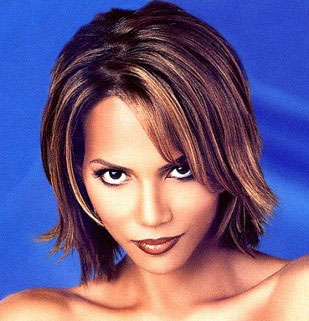
picture to work with, for the tutorial I am working with this picture of Halle
Berry.
- You need
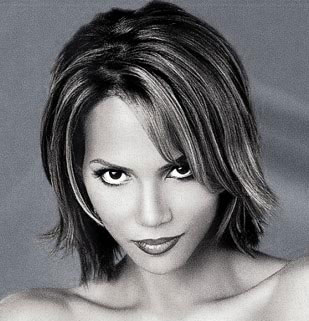
to desaturate the picture so that the colors don’t get in the way. Then create
a brush out of that picture. Then invert the picture (Strg+I) and create a
second brush out of it. If you have the two brushes, you can turn the picture
back to it’s desaturated state by just pressing Strg+I again or just delete
that step in the protocol. Keep the desaturated picture in the background,
you’ll need it later.
- Now
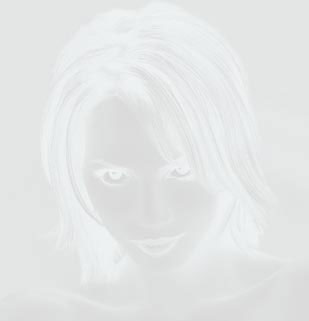
create a new layer on top of your picture and fill it with a light grey color
(#BABABA for example) This is going to be your background. Create a new layer
on top of that and use the normal brush you’ve made out of the Halle picture
with the lighter grey color. Your picture should look like this.
- Now
create another new layer and use the same brush again, this time with the
darker grey. Duplicate that layer and set the opacity of that one to 55%
(depending on your picture, anything between 50-60% should work) Your picure
looks similar to this one

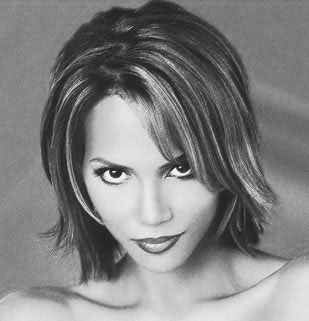
- You’ll
need another layer, this time use the brush you’ve made out of the inverted
picture with the lighter grey color. Set that layer on overlay and the opacity
to 72%. Your picture will look something like this
- After
done all that, drag your original picture on top of all those layers. Use the
colored pencil filter with the settings strength 4/pressure 8/paper
brightness 25
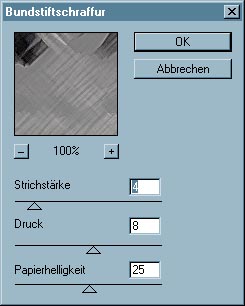
Set that layer on overlay with an opacity of 56%. Duplicate that layer and set
the opacity up to 69%.
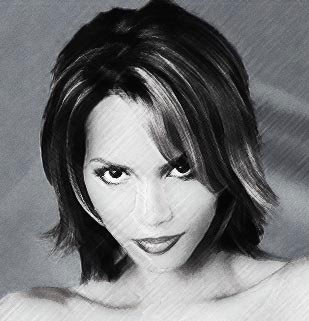
- This is
what the picture should look like, or similar to it. Save that picture as a
.jpg and you’ve finished the first step successfully.
next step